When October rolls around, iPhone owners start hunting for the perfect Halloween wallpaper to give their device a seasonal makeover. Whether you crave creepy pumpkins, haunted houses, or subtle autumn hues, choosing the right wallpaper can transform your lock screen into a mini‑festival of fright. This guide walks you through everything you need to know—where to find wallpapers, how to customize them for every iPhone model, and which designs keep your battery happy.
What makes a Halloween wallpaper perfect for iPhone screens?
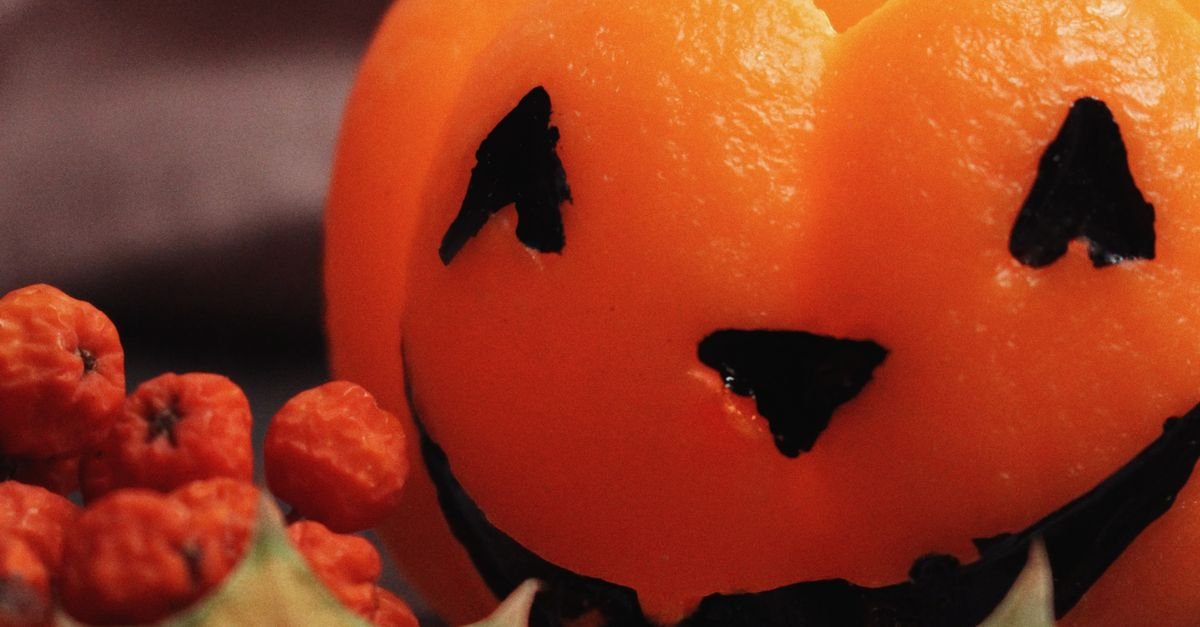
A great Halloween wallpaper does more than just look spooky; it must fit the iPhone’s display specifications, complement the app icons, and respect the device’s performance limits. First, consider resolution: modern iPhones have Retina displays ranging from 1170 × 2532 px (iPhone 13) to 1290 × 2796 px (iPhone 15 Pro Max). A wallpaper that matches or exceeds these dimensions will appear crisp without pixelation.
Second, think about composition. Wallpapers with a clear focal point placed near the center avoid interference with the time, date, and notification widgets. Darker images enhance battery life on OLED screens because black pixels are truly off. Finally, file format matters—PNG offers lossless quality for detailed art, while JPEG keeps file size low for quick loading.
Where can I find high‑quality Halloween iPhone wallpapers for free?
There are several reputable sources that curate Halloween‑themed wallpapers optimized for iPhone screens. Below is a quick roundup of the most reliable sites:
- Zedge – Offers thousands of user‑generated wallpapers with filters for resolution and style.
- Unsplash – Provides high‑resolution, royalty‑free photos; search “Halloween” and filter by orientation.
- WallpaperHub – Curates wallpapers from indie artists, often including live‑photo options.
- Reddit r/iPhoneWallpapers – Community‑vetted selections; many posts include exact dimensions for each iPhone model.
- Apple’s Today at Apple – Occasionally releases seasonal collections that are automatically sized for iOS devices.
When downloading, always verify that the image size matches your device to avoid stretching or blurriness.
How to customize Halloween wallpapers to fit different iPhone models?
Using the built‑in Photos app
1. Open the image in Photos.
2. Tap the share icon and select Use as Wallpaper.
3. Pinch to zoom or drag to reposition; the preview shows how the image will appear on the lock and home screens.
4. Choose Set → Set Lock Screen, Set Home Screen, or both.
Third‑party apps for precise cropping
Apps like Wallpapers & Themes for iPhone or Pixelmator let you input exact pixel dimensions. Simply import the Halloween image, set the canvas size to your iPhone’s resolution, and export as PNG for the sharpest result.
Remember to test the wallpaper on both the lock and home screens, because the dynamic island on newer models can obscure parts of the image.
What are the best design trends for Halloween iPhone wallpapers in 2024?
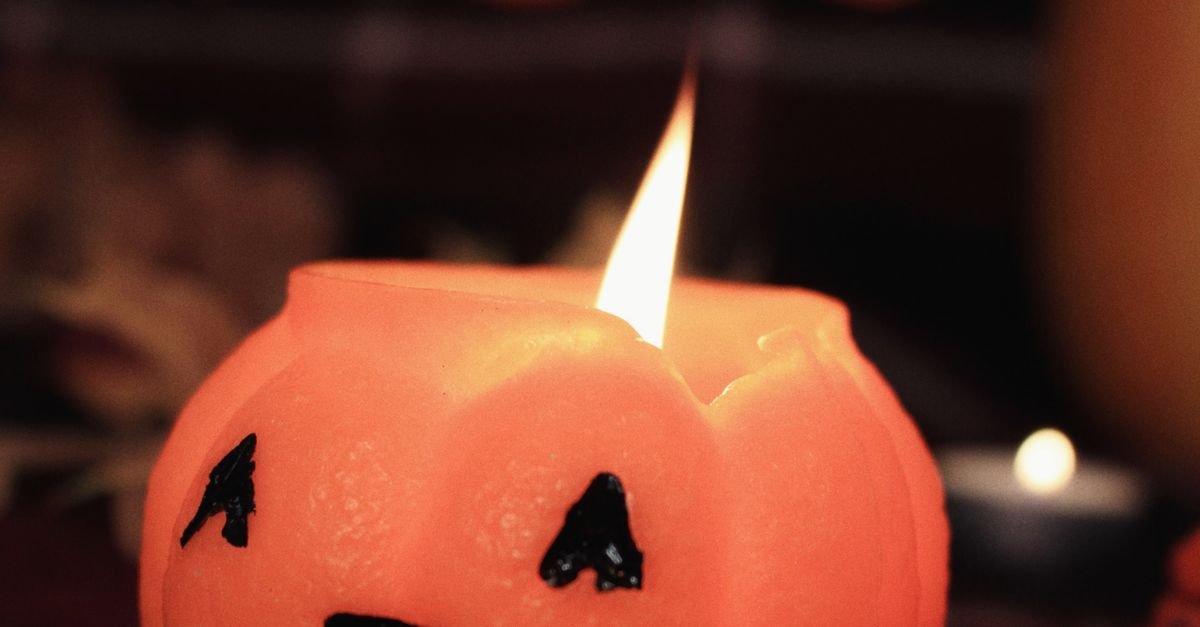
This year’s trends blend classic horror motifs with modern minimalism. Designers are experimenting with motion, color palettes, and layered compositions. Here are the top five trends:
- Animated Live Photos – Subtle flickers of candlelight or floating ghosts that activate on long‑press.
- Neon Silhouettes – Dark backgrounds punctuated by bright, neon‑glow pumpkins or witches.
- Monochrome Sketches – Hand‑drawn line art in grayscale, offering a vintage feel without heavy file sizes.
- Gradient Autumn Hues – Soft transitions from burnt orange to deep violet, providing a calm yet festive vibe.
- 3D Parallax Effects – Depth layers that shift with device movement, creating an immersive haunted‑house illusion.
Choosing a trend that matches your personal style will make the wallpaper feel less like a seasonal gimmick and more like an extension of your iPhone aesthetic.
How to set up a dynamic Halloween wallpaper that changes daily?
iOS does not natively support automatic wallpaper rotation, but you can achieve daily changes with Shortcuts automation. Follow these steps:
- Gather 30‑31 Halloween‑themed images, one for each day of the month.
- Save them in a dedicated album named “Halloween2024”.
- Open the Shortcuts app, create a new automation, and select “Time of Day”.
- Set the trigger to 8:00 AM daily.
- Add the “Find Photos” action, point it to the “Halloween2024” album, and sort by “Random”.
- Add the “Set Wallpaper” action, choosing “Lock Screen”, “Home Screen”, or both.
- Enable “Ask Before Running” to false, then save.
Now your iPhone will display a fresh Halloween scene each morning without manual effort.
Can I create my own Halloween wallpaper using apps?
Absolutely! Several iOS apps give you the tools to design custom wallpapers from scratch or by remixing existing assets.
Top apps for DIY Halloween wallpapers
- Procreate Pocket – Offers a full‑featured brush library; you can paint pumpkins, spiders, or haunted landscapes directly on the canvas.
- Canva – Provides ready‑made Halloween templates; simply drag‑and‑drop elements and export at the exact iPhone resolution.
- Pixlr – Good for quick photo edits, adding overlays like fog or bat silhouettes.
- Live Photo Maker – Turns short video clips into Live Photos that can be set as animated wallpapers.
When designing, keep the safe zone in mind: avoid placing important details within the top‑center area where the clock and date appear.
Which Halloween wallpaper styles consume the least battery?
Battery impact varies mainly between static images, live photos, and dynamic wallpapers with motion or parallax. The table below summarizes the typical power draw for each type on OLED iPhone models.
| Wallpaper Type | Resolution | Battery Impact | Recommended For |
|---|---|---|---|
| Static PNG/JPEG | Full‑screen (≥ 1170 × 2532) | Lowest – pure black pixels are off | Everyday use, maximum battery life |
| Live Photo (short loop) | 1080 × 1920 (typical) | Medium – animation runs on tap | Special occasions, occasional use |
| Dynamic Parallax | Full‑screen with depth layers | Higher – constant motion sensing | Users who love visual depth |
For a Halloween theme that lasts all month without draining power, stick with a high‑resolution static PNG that incorporates dark areas.
Spooky Quick Facts About Halloween iPhone Wallpapers
- The first iPhone‑specific Halloween wallpaper appeared in iOS 5 (2011) as a hidden Easter egg.
- OLED screens on iPhone X and later can save up to 15 % battery with pure‑black wallpapers.
- Live Photos count as video files, so a 3‑second loop typically adds 1‑2 MB to storage per wallpaper.
- Apple’s Shortcuts automation can change wallpapers up to 30 times per day without violating App Store policies.
- Using a gradient of orange to purple aligns with the most searched color combination for Halloween in 2024.
Frequently Asked Questions
Can I use a Halloween wallpaper on my Apple Watch?
Yes. Sync the wallpaper to the Watch via the Photos app, then set it as a watch face background. Keep the image square (≈ 368 × 368 px) for optimal display.
Do Live Photo wallpapers work on iPhone SE (2022)?
Live Photos are supported on iPhone SE (2022) because it has an A15 Bionic chip, but the device lacks the always‑on display, so the animation only plays when you press the lock screen.
Will a dark Halloween wallpaper affect the visibility of white app icons?
Dark wallpapers improve contrast for white icons, making them more legible. However, overly busy backgrounds can still cause visual noise; using a subtle texture or gradient helps maintain clarity.
Is it safe to download wallpapers from third‑party sites?
Most reputable sites are safe, but always scan files for malware. Stick to well‑known platforms like Zedge, Unsplash, or official app stores to reduce risk.
How often does Apple refresh its official seasonal wallpaper collection?
Apple typically updates its seasonal collections at the start of each major holiday—Halloween, Christmas, and New Year—usually within the first week of the month.
Final Thoughts
Choosing the right Halloween wallpaper for your iPhone blends creativity with technical know‑how. By selecting a high‑resolution image, tailoring it to your device’s dimensions, and considering battery impact, you can enjoy a festive lock screen that lasts the whole month without compromising performance. Whether you download a free design, customize your own, or set up a daily‑changing automation, the perfect spooky backdrop is just a tap away. Happy haunting!